The Apple App Store offers a variety of subscriptions and services that you can easily sign up for. Cancelling a subscription service, however, can be a little tricker.
Apple has developed a fantastic ecosystem over the years, with almost all Apple devices working seamlessly together to create a fluid and easy experience for the user. That ecosystem extends to the App Store, too, as there are myriad different subscriptions and services that you can easily sign up for.
If you’re looking to save a little money – or you just want to cut back on the services you’re signed up with – you may want to start cancelling some of your subscriptions. Thankfully, cancelling subscriptions on your iPhone is a simple process that can be achieved in just a few minutes.
Keep reading if you want to find out the easiest way to cancel your subscriptions on your iPhone. This extends to Apple’s own suite of apps, including Apple TV+, Apple News+, and Apple Fitness+, as well as any third-party applications.
What we used
- We used the iPhone 13 Pro, but this method will work on any iPhone.
The Short Version
- Head into Subscriptions
- Manage your app subscriptions
- Restart expired subscriptions
-
Step
1Head into Subscriptions
First open the Settings app and tap your Apple ID at the top of the page (the one with your profile image and name). Now tap Subscriptions. You’ll be presented with all of the apps you’ve ever subscribed to, split between Active and Expired.
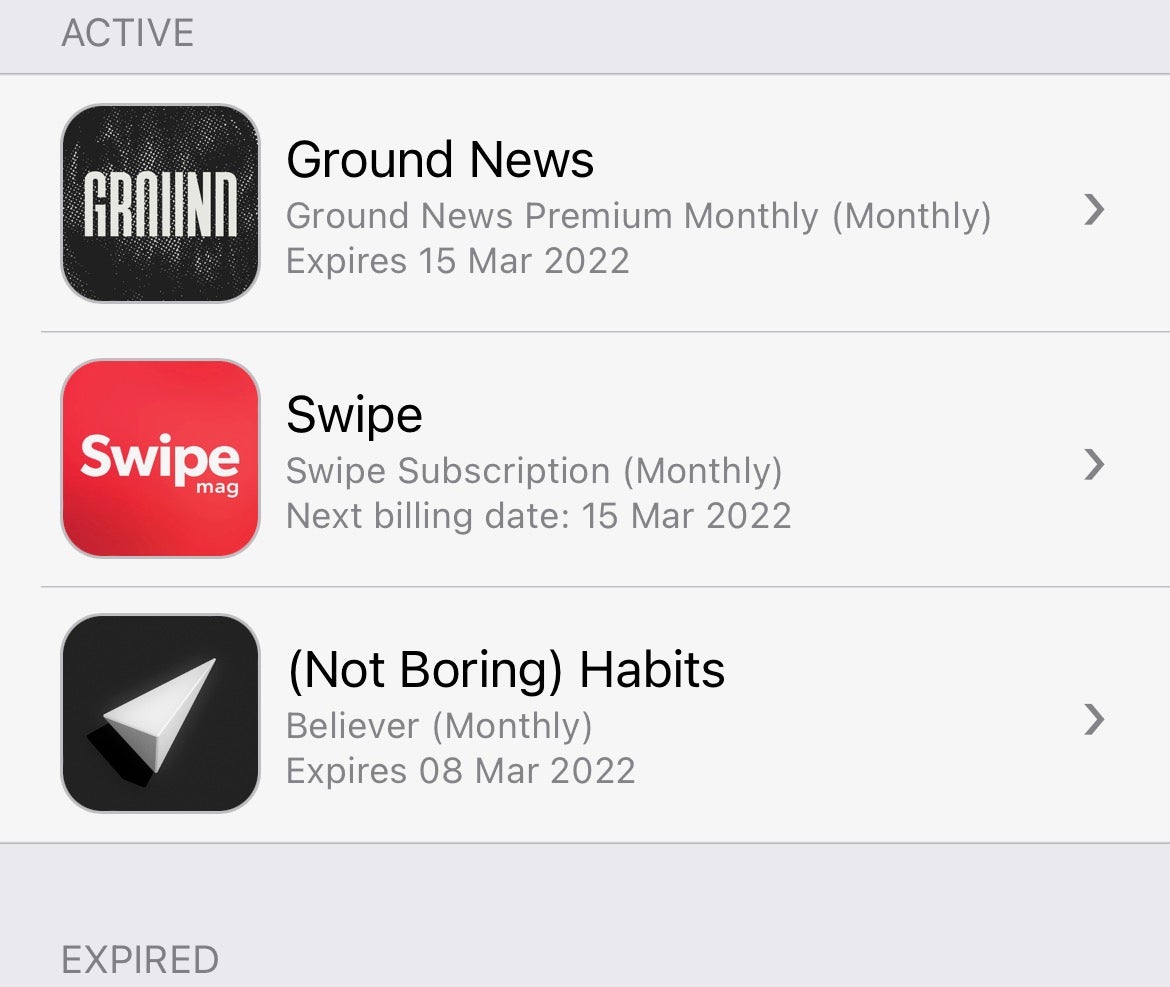
-
Step
2Manage your app subscriptions
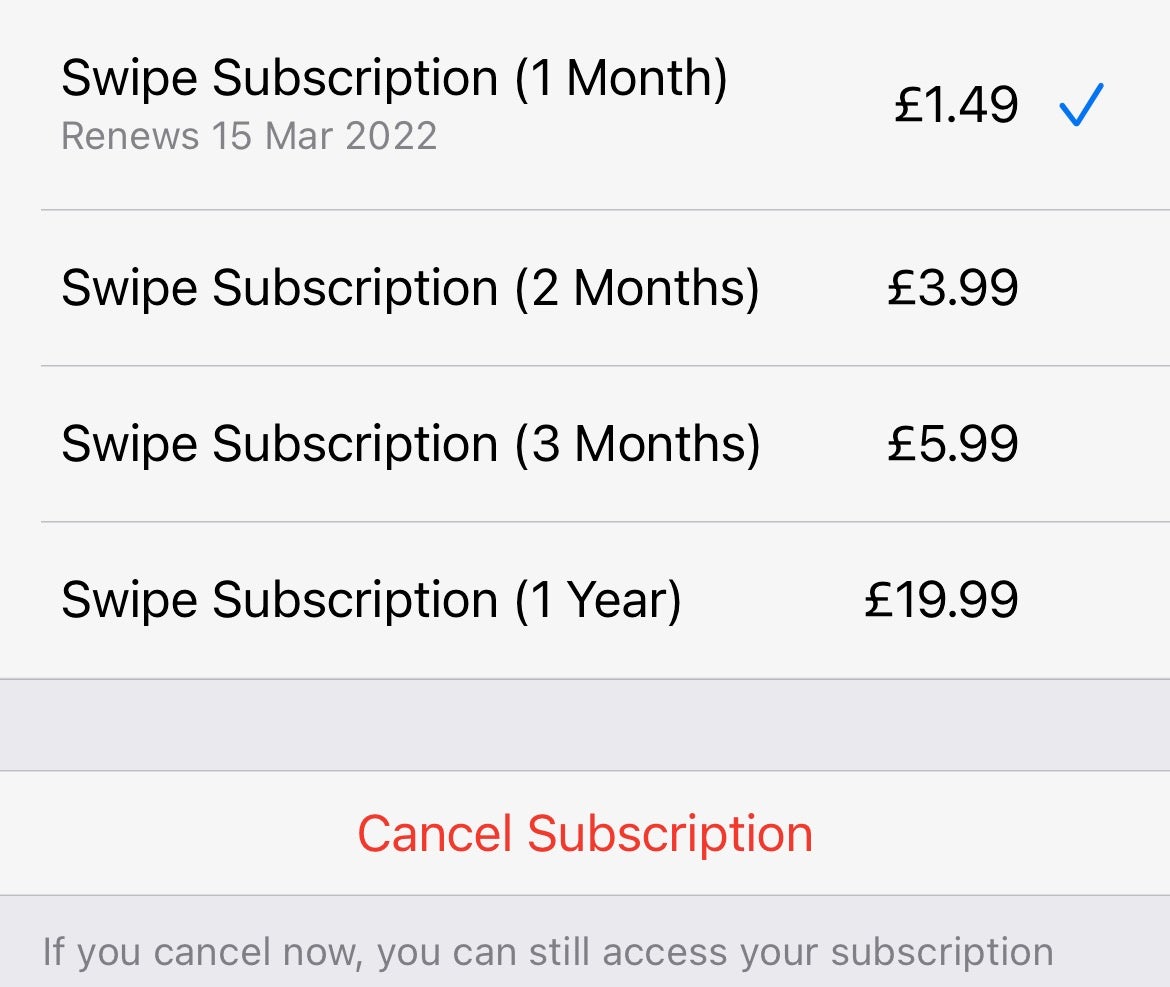
Tap the Active app that you wish to cancel, followed by ‘Cancel Subscription’. Confirm when prompted, and your subscription will be cancelled.
-
Step
3Restart expired subscriptions
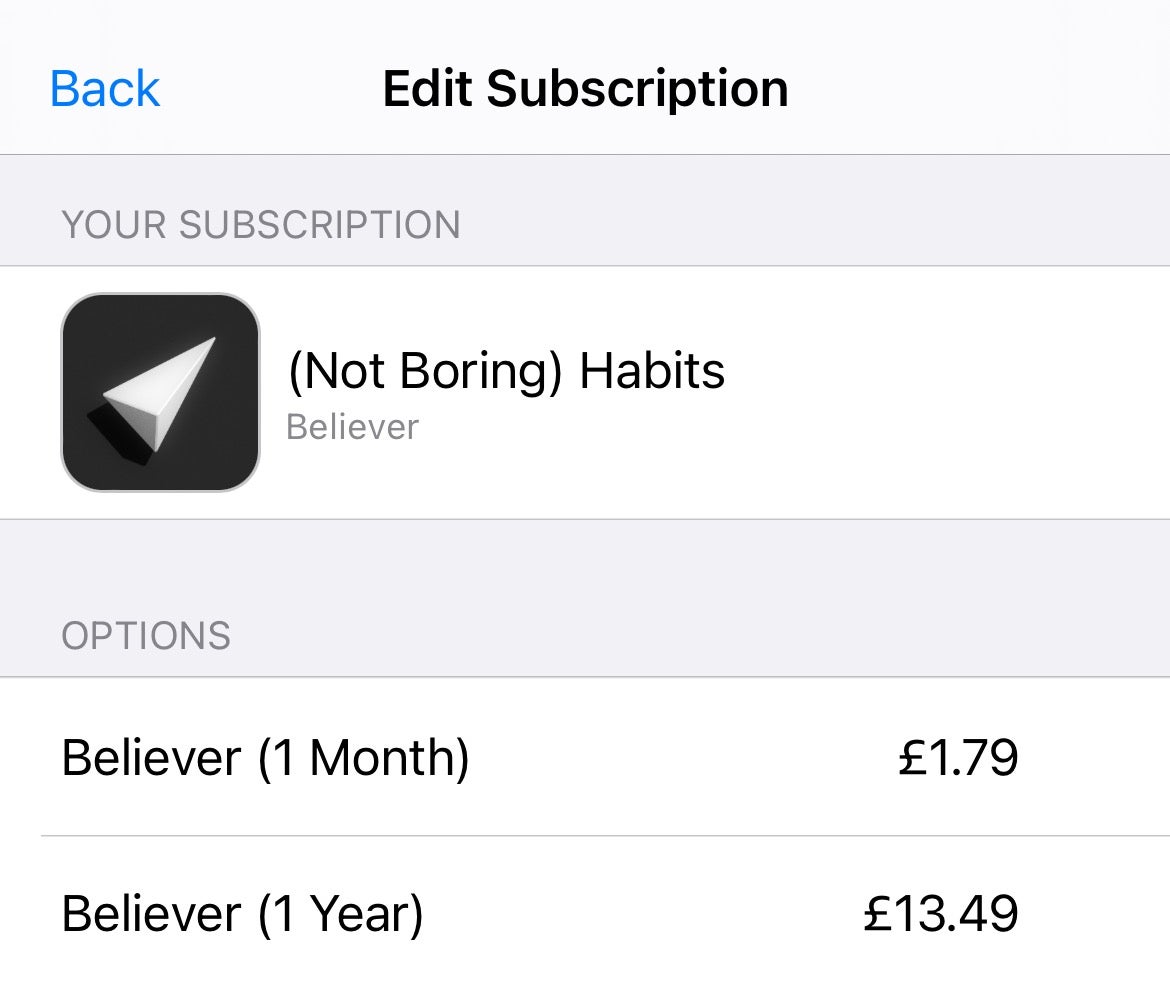
Heading into the Subscription tier outlined above shows you all of your Expired subscriptions as well as your Active ones. Tap on the Expired subscription you’re interested in, followed by the appropriate subscription payment tier, and authenticate the ongoing payment. You are now re-subscribed.
FAQs
This cancellation method also lets you manage your subscriptions, including switching to a different payment tier. Simply tap one of your active subscriptions and select a different option, followed by a payment authentication if appropriate.
When you cancel a subscription, you’ll probably still have a while to run before your subscription officially ends, whether that’s a week, a month, or a year. Your subscription will show as Active until that final period expires.
If you’ve signed up for a subscription on your phone through a website, you’ll need to log in and consult that website’s specific cancellation policy.
Originally posted 2023-10-27 13:48:20.