A games console will be as useful as an oversized paperweight if you don’t have a controller linked to it. With this in mind, syncing the Xbox controller to the Xbox Series X or Xbox Series S is one of the most important first steps you need to take.
The Xbox controller uses a wireless connection to the console, and doesn’t need to use a cable for the initial syncing. However, the process to sync up the controller isn’t too obvious, so we’ve decided to create this guide to help you out.
Below, we’ve created a step-by-step guide to sync an Xbox controller to your Xbox console. We’ve even included pictures to make the guide as easy to follow as possible.
What you’ll need
- Xbox Series X or Xbox Series S
- Xbox Wireless Controller
The Short Version
- Press the Xbox button on your controller to turn it on
- Press the sync button on your Xbox console
- Hold the sync button on your Xbox controller
-
Step
1Hold the Xbox button on your controller to turn it on
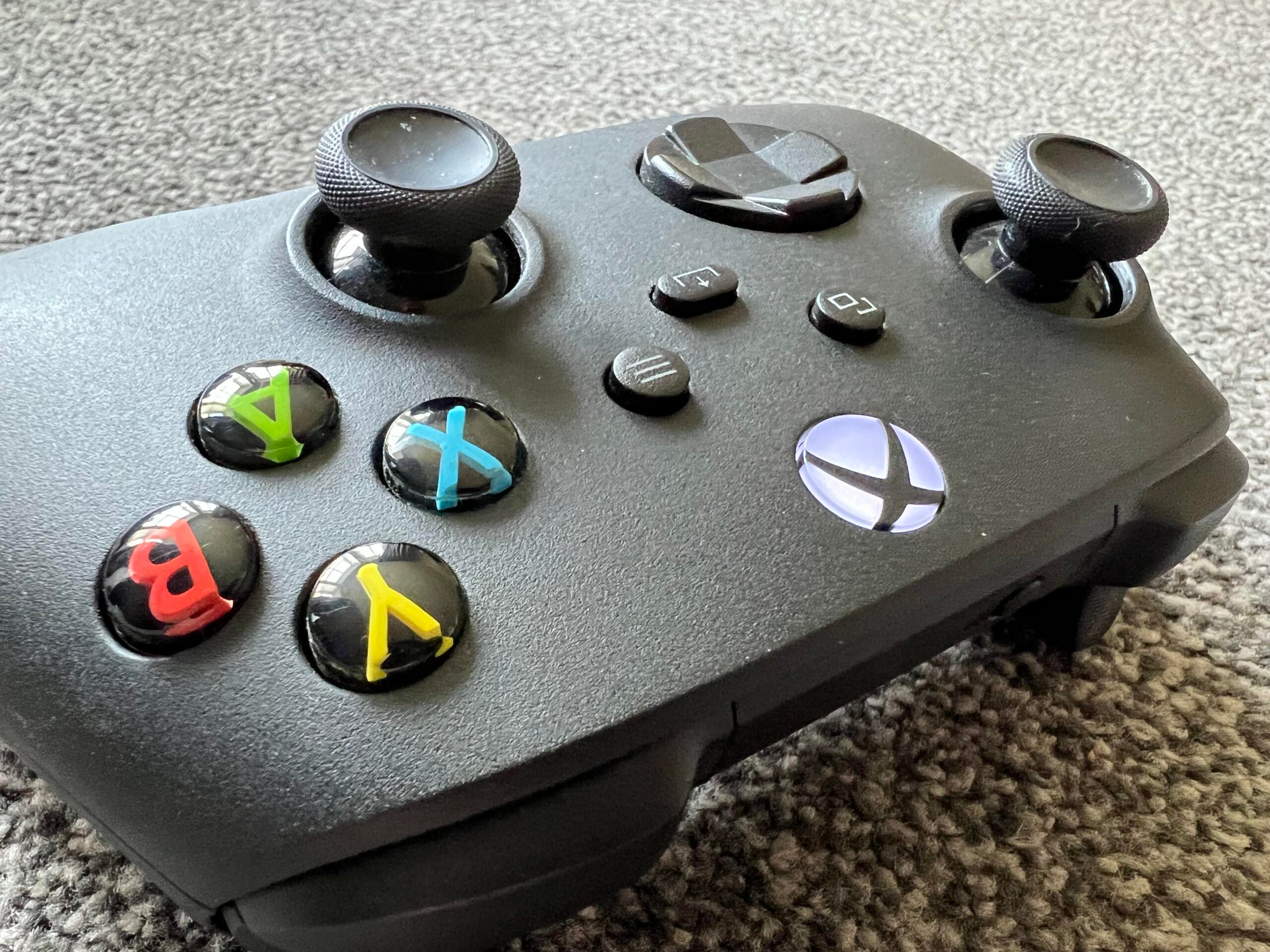
Find the Xbox logo button in the centre of the Xbox controller. Then press and hold down until the controller turns on and the logo starts to glow. If this doesn’t happen, you may need to add new batteries to the controller and try again.
-
Step
2Find and press the sync button on your Xbox console
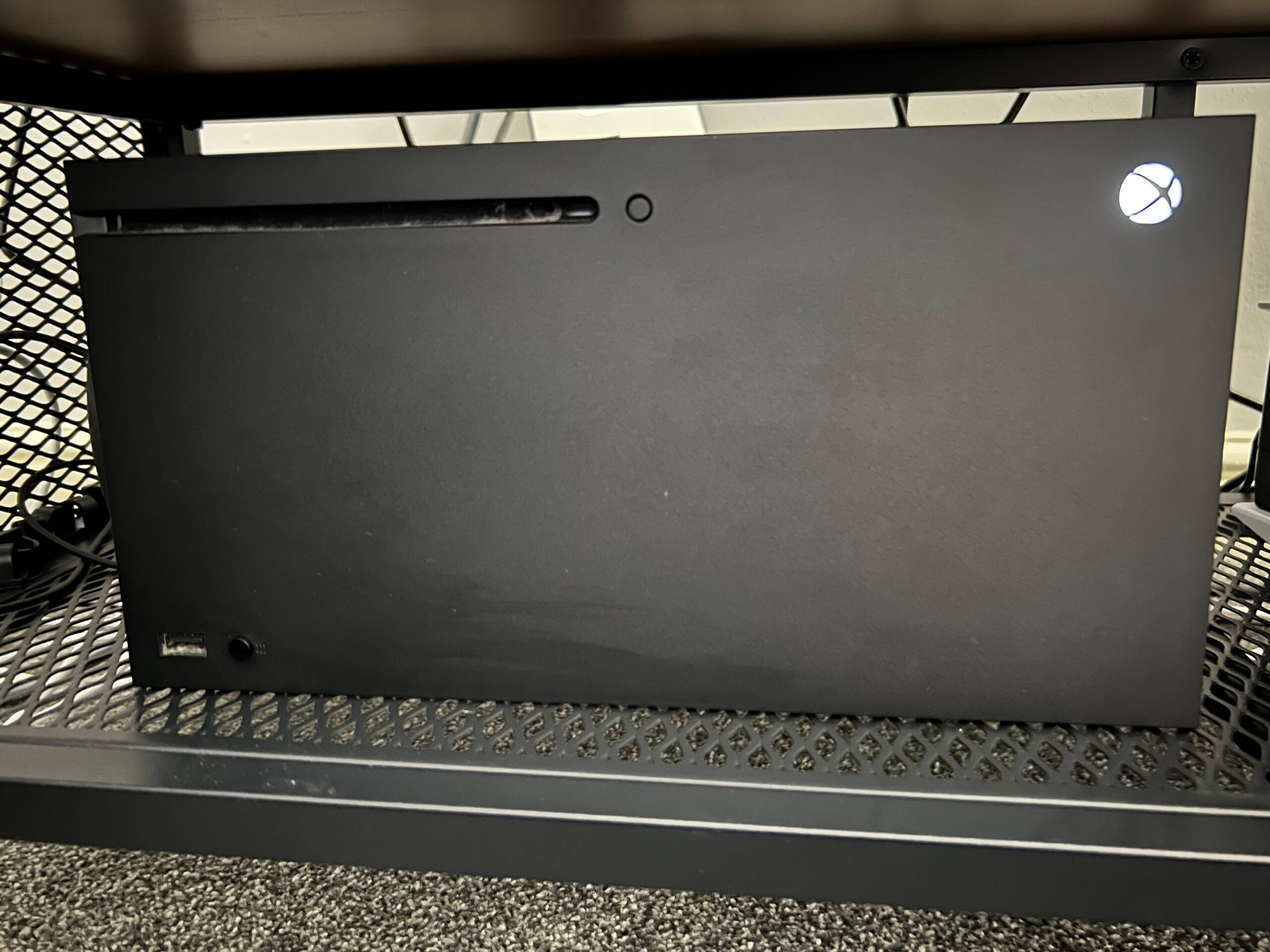
Position yourself in front of the Xbox and make sure it is turned on. On the Xbox Series X, there are two sets of extruding buttons, and you’re looking for the one that is next to the USB input port (in the bottom-left corner of our photo).
On the Xbox Series S, there is no disc tray, so there’s only one button next to the USB port, and this is the one you need. Press it and the console’s power button will start flashing, engaging pairing mode.
-
Step
3Press the sync button on your Xbox controller
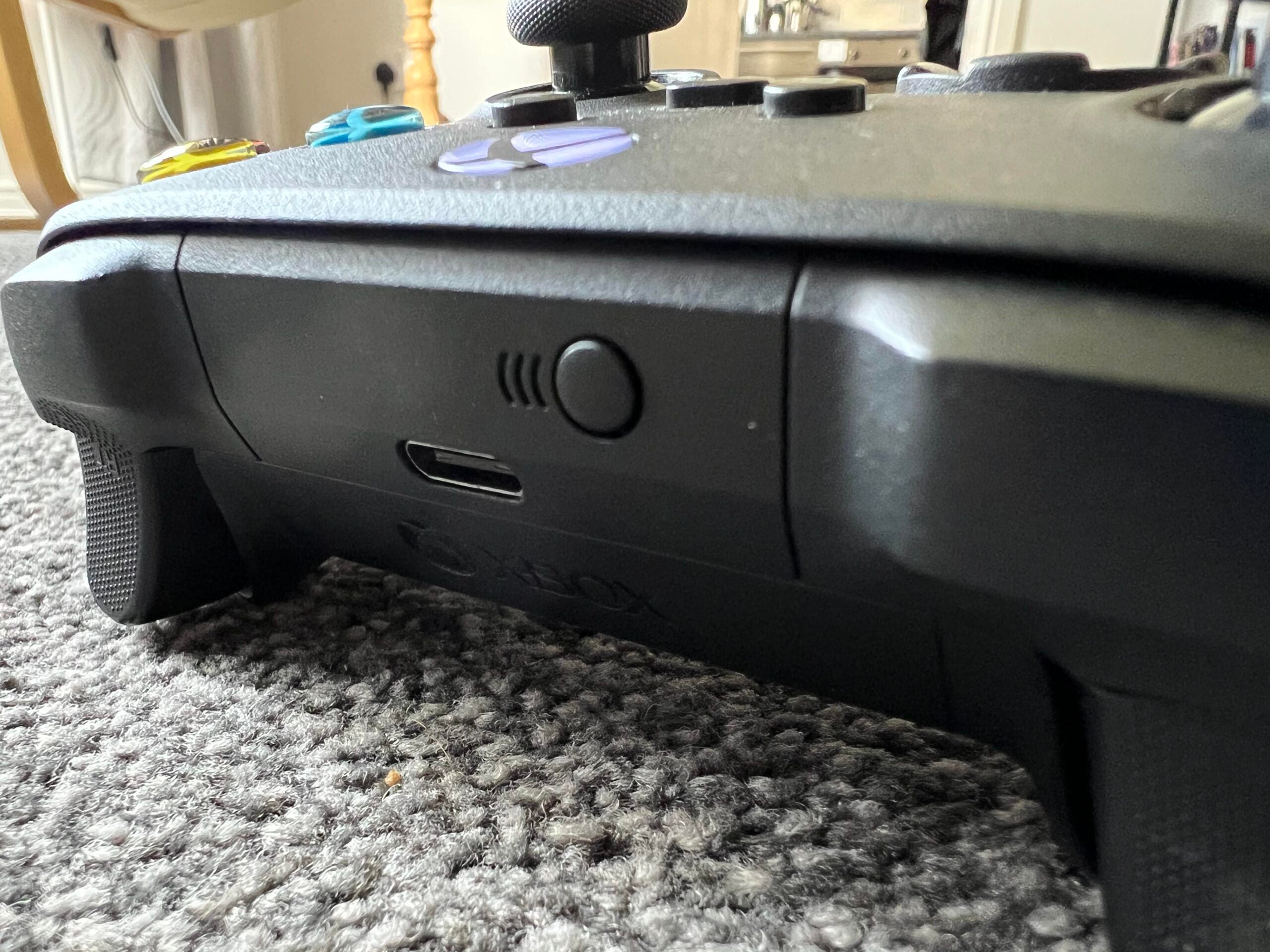
Now that the console is in pairing mode, you need to do the same thing on the controller. Look at the top of the Xbox Wireless Controller to find a sync button next to the USB-C port. Hold this button down until the controller power button flashes, just like the one seen on the console.
-
Step
4Complete the sync process
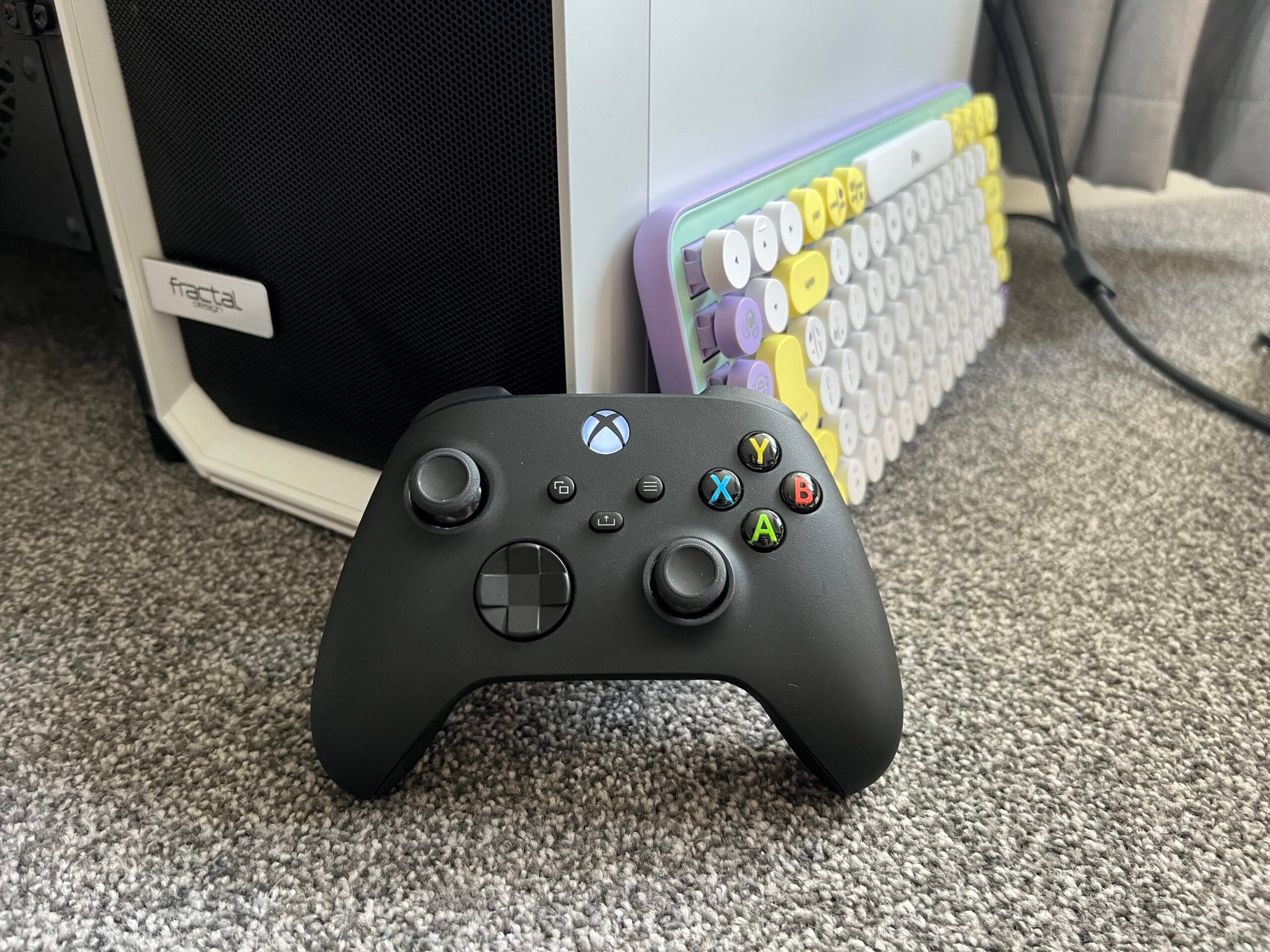
When both the controller and the console power lights are flashing, they will attempt to find each other using Bluetooth.
The process will be completed once the power light on the controller stops flashing and becomes static. If you want to connect a second controller, simply repeat the steps above.
Troubleshooting
You can repeat this process for any other controllers that you want to pair with your Xbox console.
The process outlined above is also used when pairing an Xbox controller to a device that is not an Xbox console, such as a PC or an iPad for remote play. If you’re trying to connect it to another device, just make sure you find that device’s Bluetooth menu and make sure it’s on, so that the accessory can be found and paired.
This likely means that you need new batteries for the controller. Alternatively, if you have a rechargeable battery pack, you’ll need to plug it into the Xbox console or power source.
Originally posted 2023-10-26 09:18:00.