If you want a little privacy while you’re engaging in work calls, why not try the blur background feature in Microsoft Teams?
With video conferencing becoming the new norm over the last few years, you’re likely familiar with apps like Microsoft Teams and Zoom. Despite this new era of work, not everyone has a space in their home that’s best suited for video calls.
That’s where the Blur feature comes in. On Microsoft Teams, you can set your background to blur, keeping you in focus and ensuring that everything in the background becomes a lot harder to distinguish.
If you’re interested in using the Blur feature on your next Teams call, then make sure you keep reading, as we’re going to be running through the process in a simple step-by-step guide.
Apple Music
Apple Music gives you access to over 100 million songs and 30,000 playlists, ad-free. Listen online or off, across all your devices, and hear sound all around in Spatial Audio with dynamic head tracking. You can now try 1 month for free!
- Apple
- Get 1 month free
- £10.99 p/m
Sign up
What you’ll need:
- A Microsoft Teams account
- A device with a webcam/camera
The Short Version
- Open the Microsoft Teams app
- Click on the Meet now button
- Click Start Meeting
- Enable your camera
- Click on Background filters
- Click Blur
-
Step
1Open the Microsoft Teams app
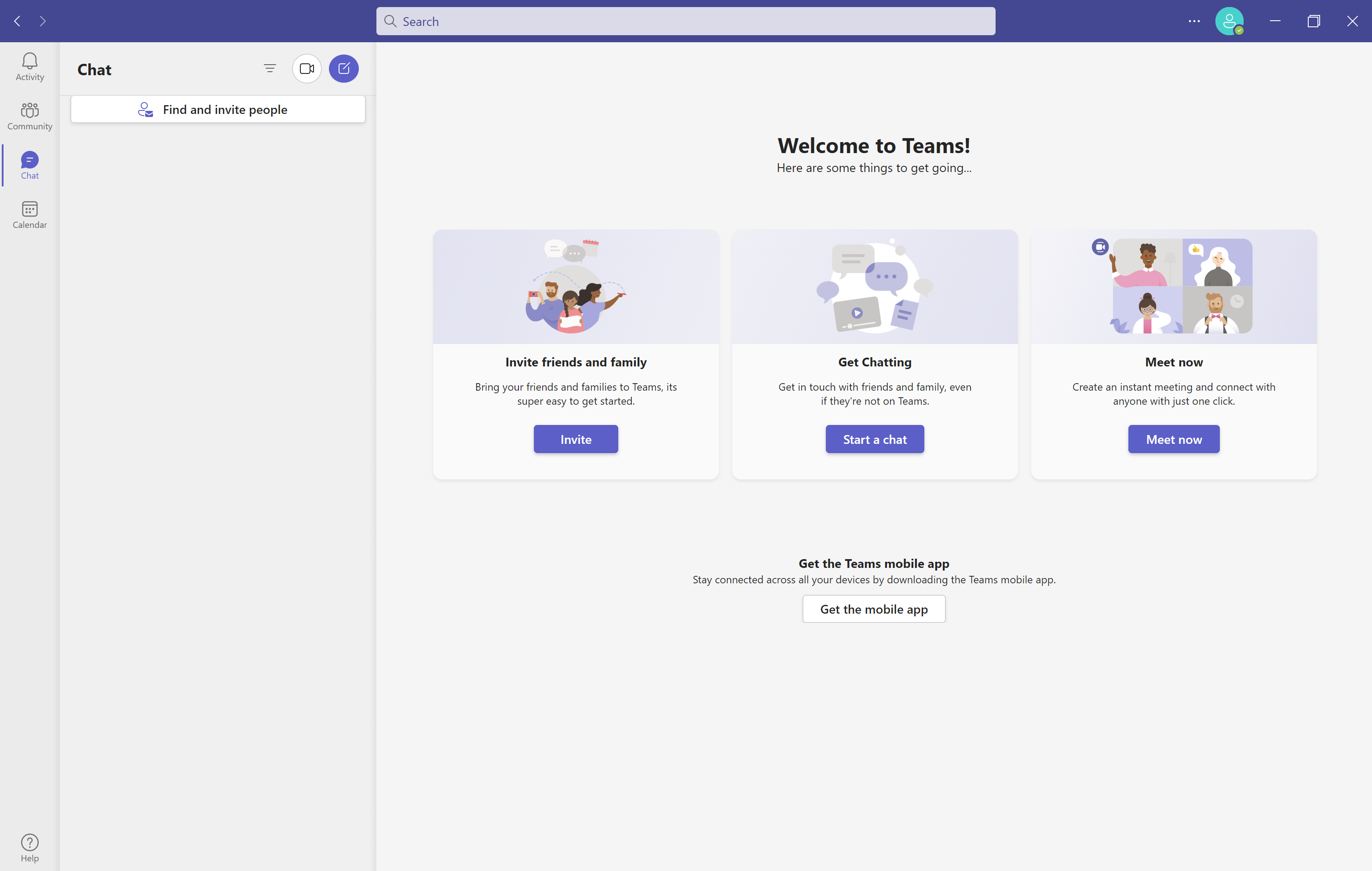
Open the Microsoft Teams app on your laptop or mobile device. You can download the app for free on Mac, Windows, iOS and Android.
-
Step
2Click on the Meet now button

In the activity section, click on the Meet Now button. It looks like a small video camera.
-
Step
3Click Start Meeting
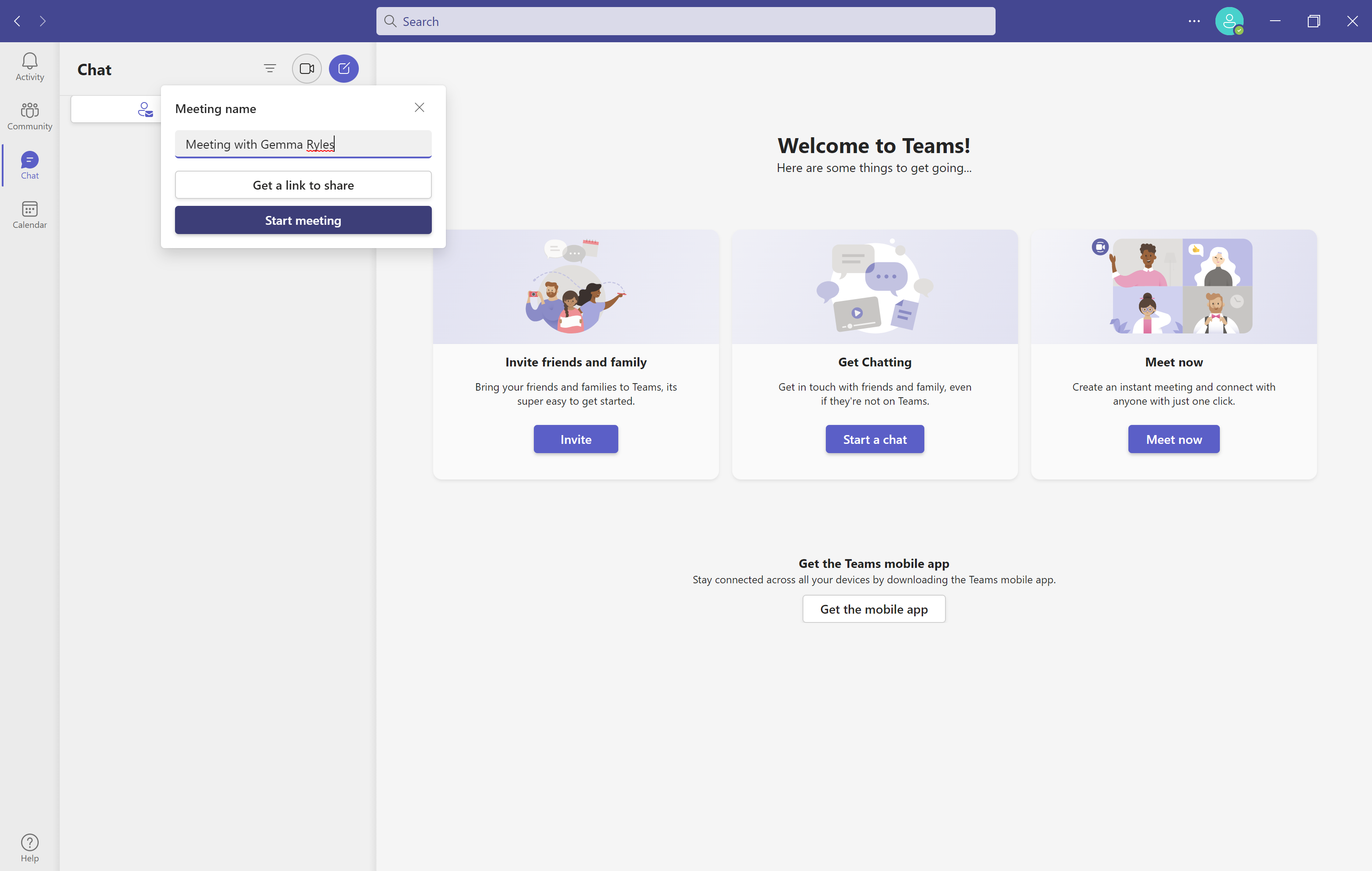
Once you are happy with the name of your call, click on the Start Meeting button.
-
Step
4Enable your camera

Turn on your camera if it is not turned on already.
-
Step
5Click on Background filters
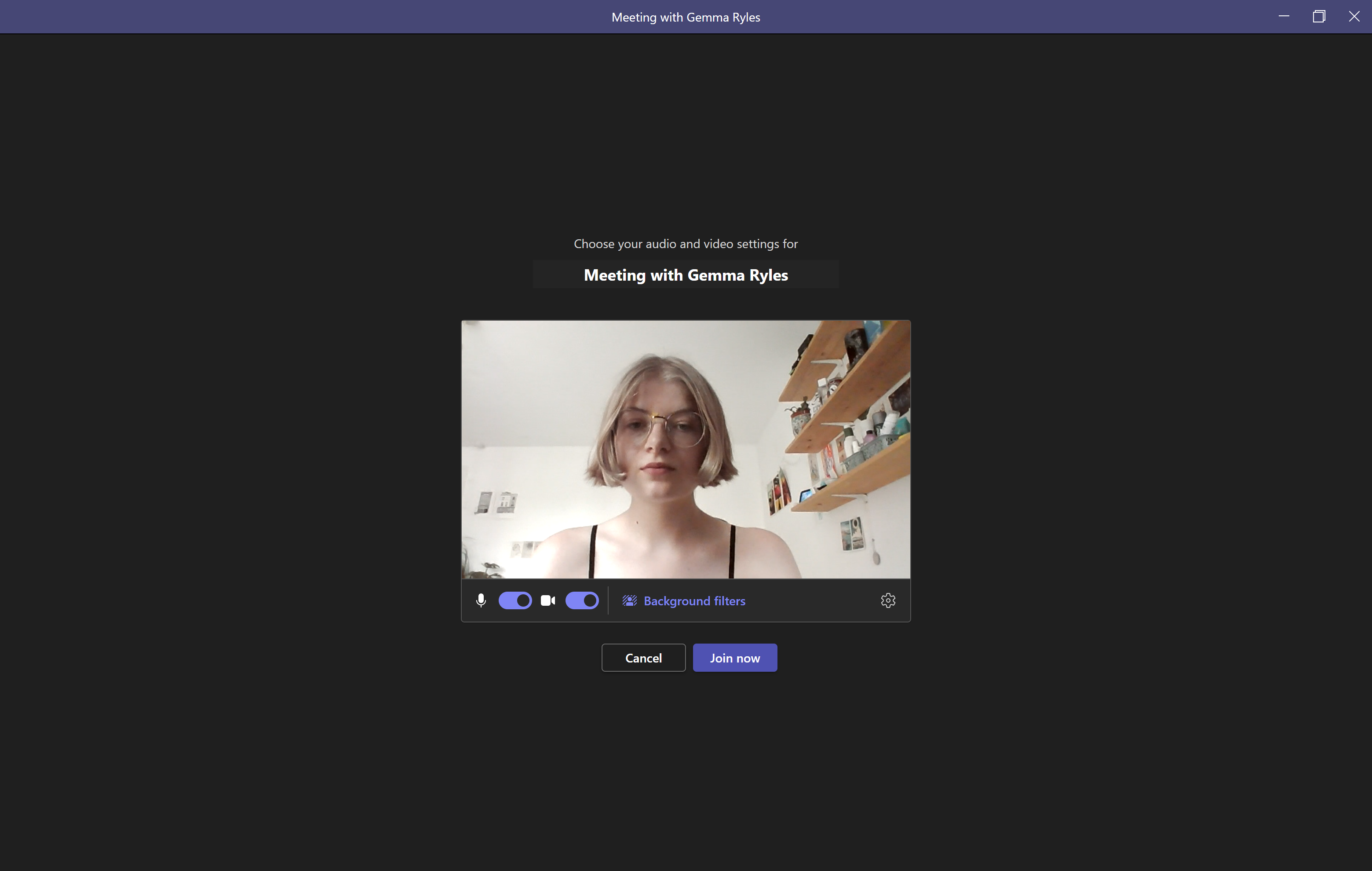
Click on the large button called Background filters.
-
Step
6Click Blur
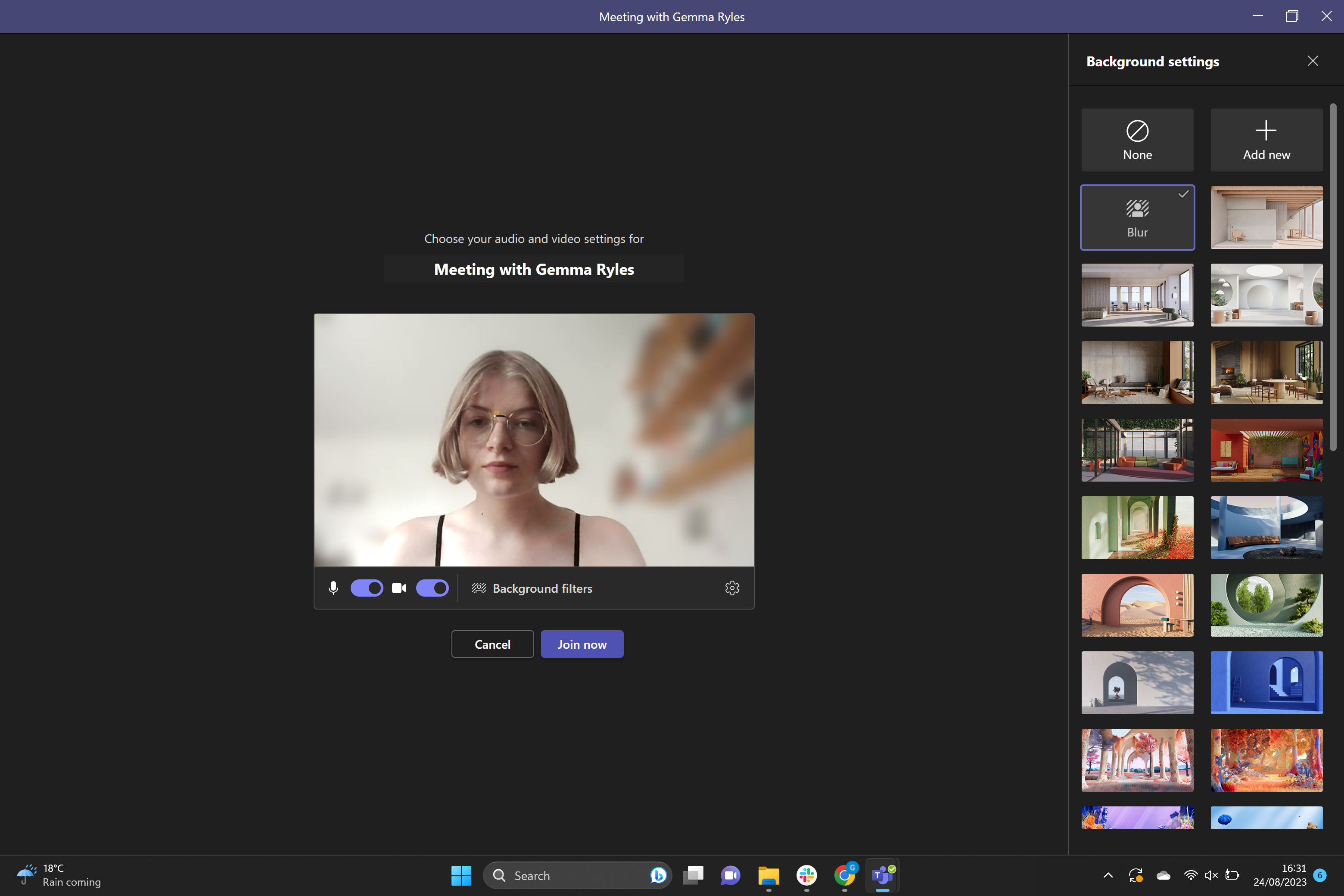
From the selection of filters given, click on the Blur button. You can also set images as your background, either from the provided selection or from your own library.
Troubleshooting
Yes, you can blur your background before your call and during the call. Both methods require clicking on the Background filters button.
Originally posted 2023-08-28 07:00:00.