One of the notable design changes introduced with the iPhone 15 Pro was the addition of the Action Button. If you’ve picked up the new phone, here’s how to customise the functionality of the new button.
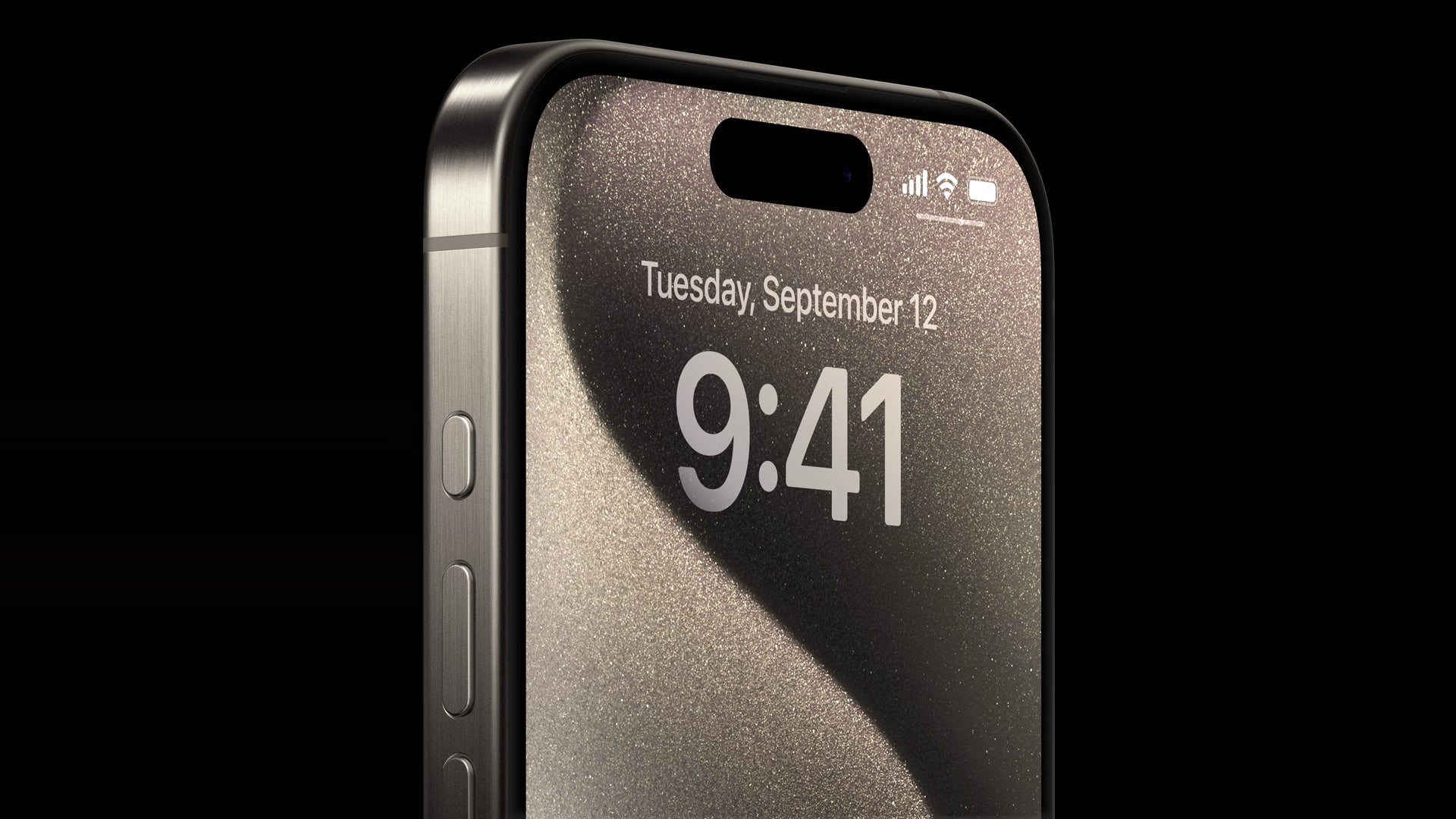
The Action Button – a feature anyone who has an Apple Watch Ultra will be instantly familiar with – replaces the ringer switch that sat on every single previous iPhone. It can still function as a quick way of silencing the phone but there are plenty of added skills now too.
What pressing the button achieves can be altered, and below we’ll run through how you can change what happens when the Action Button is pressed.
What you’ll need:
- An iPhone 15 Pro or iPhone 15 Pro Max
The Short Version
- Unlock the iPhone 15 Pro
- Open Settings
- Select Action Button
- Swipe through the available options
- Press Action Button
Forget the iPhone 15, the 14 Pro Max is finally on the cheap
Get the iPhone 14 Pro Max on a 24-month contract for just £43.99 per month with £159 upfront, complete with unlimited calls and texts, and 100GB of 5G data.
- Mobiles.co.uk
- £159 upfront
- £43.99 per month
View Deal
-
Step
1Unlock the iPhone 15 Pro
First off, unlock your iPhone 15 Pro or iPhone 15 Pro so you’re looking at the Home Screen full of icons.
-
Step
2Open Settings
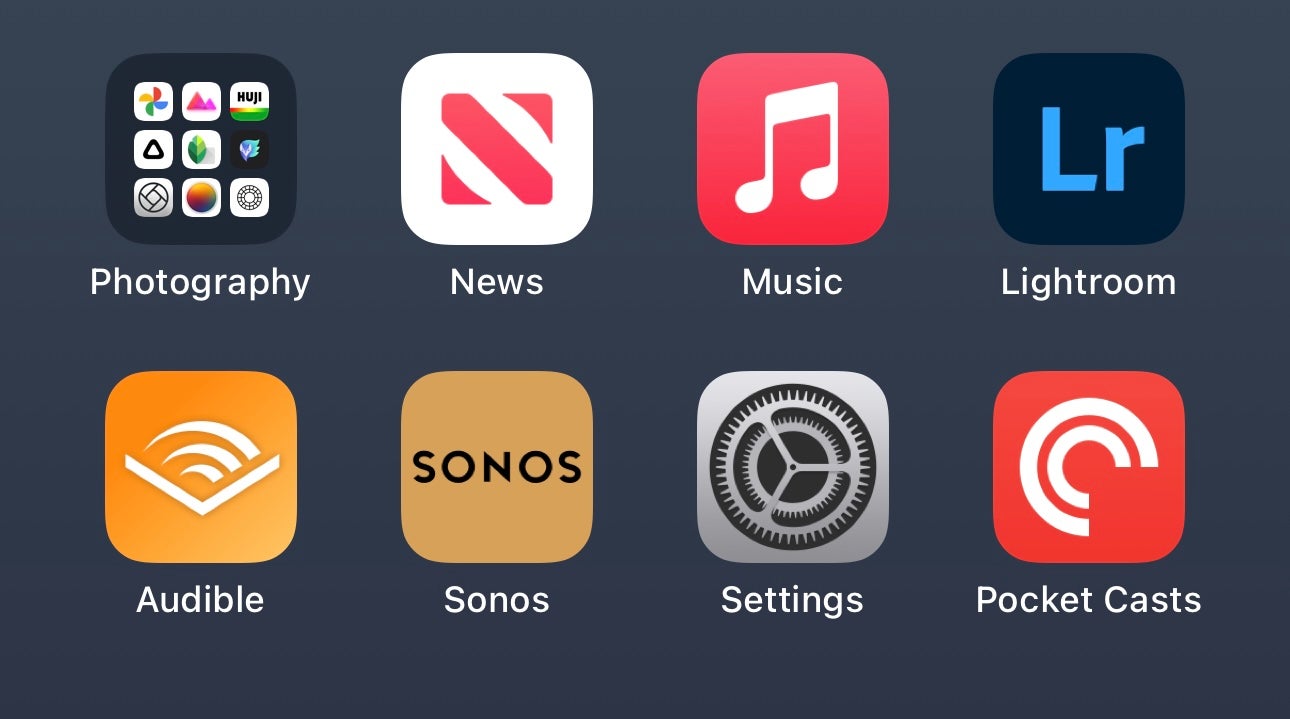
Next, locate and tap on the Settings icon. This app is signified by the cog icon you can see in the image.
-
Step
3Select Action Button
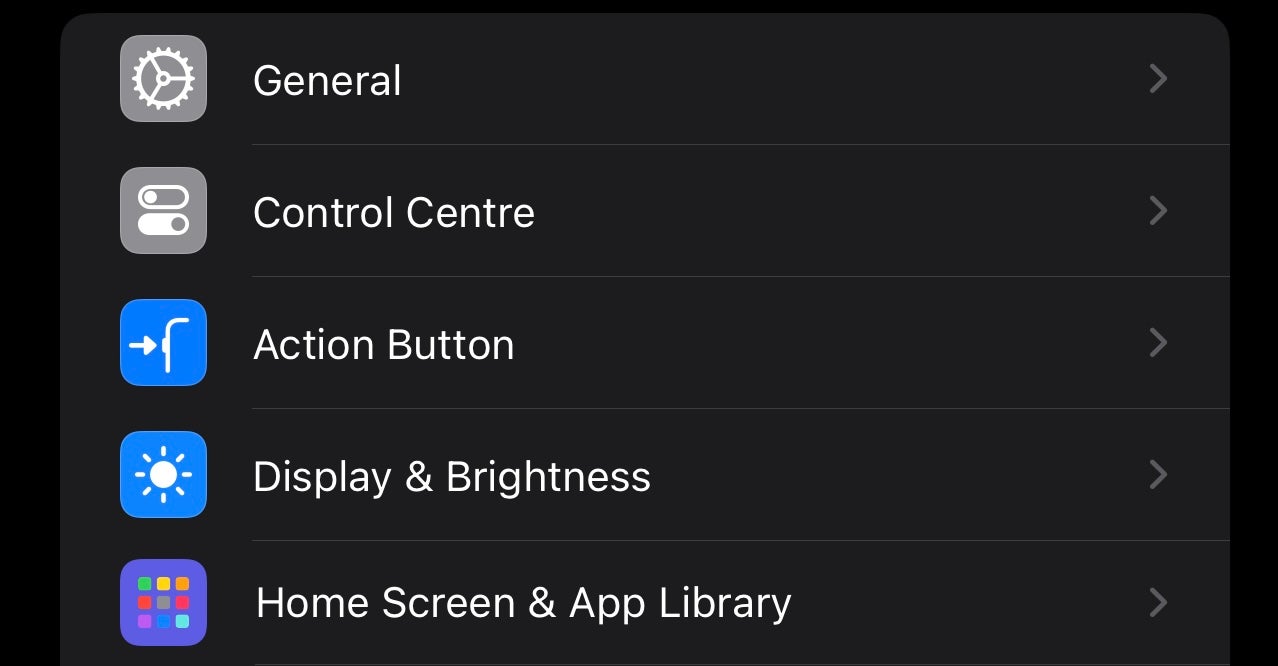
Once you’re in Settings, scroll down until you spot the Action Button option. Tap it.
-
Step
4Swipe through available options
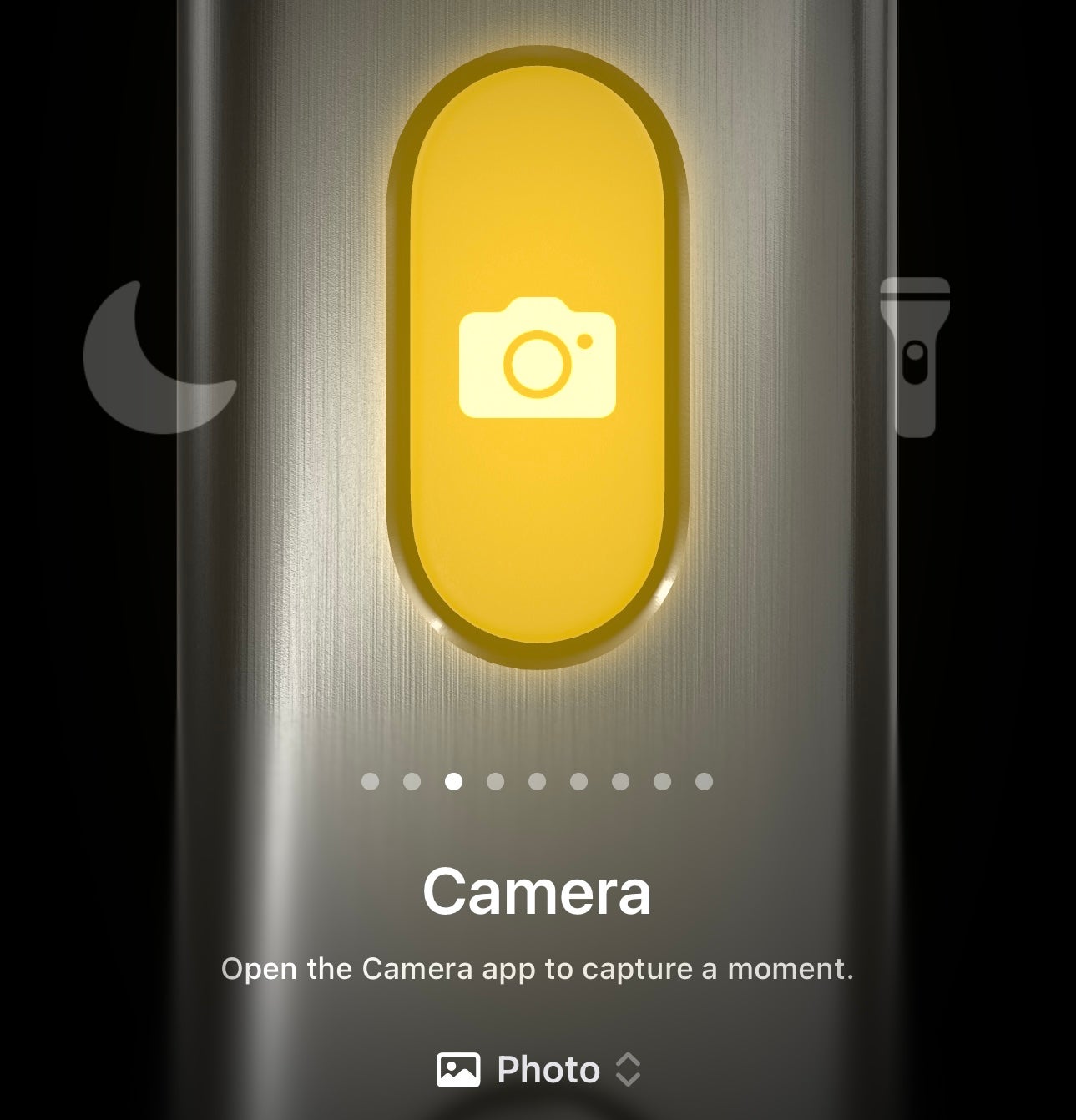
Next, you’ll be taken to a menu screen that looks very different to the offers, showing off all the things that can be achieved by pressing the Action Button. Options include turning on the flashlight, starting a voice menu, opening the camera or magnifying glass, muting the phone or entering a specific Focus Mode. There’s also an option to set it to any Shortcut from the app of the same name.
Once you’ve swiped over to the functionality it is automatically selected.
-
Step
5Press Action Button
To check the functionality works, press the Action Button and it should jump into life. For instance, if you selected Camera you should be taken to the app.
Troubleshooting
No, currently you can only set one action to a press of the button. However, that function can change once you’re in an app. For instance, if it’s set to open the camera it can then be used as a shutter button.
Yes, one of the options is No Action. Select this and the button will do nothing when pressed.
Originally posted 2023-09-26 15:54:23.