If you want to keep track of which games in your Steam library are getting appropriate updates, it may be worth changing your settings.
Steam is known for its notorious updates, and it’s no different when it comes to the games on the platform.
If you want to keep track of all the games you need to update then it may be worthwhile looking into the game’s settings, to ensure that each game is getting the appropriate updates.
Keep reading our thorough step-by-step guide to find out how you can customise your game’s update to ensure that everything is running smoothly.
What you’ll need:
- A Steam account
- A laptop, desktop or Steam Deck that can run Steam
The Short Version
- Open Steam
- Go to your Library
- Right-click on your game of choice
- Go to Properties
- Click on Updates
- Click on Automatic Updates
- Select how you want to update your game
Save big on the Samsung Galaxy A54 5G
The Samsung Galaxy A54 5G can currently be grabbed on a generous Three contract for a low monthly fee.
- Affordable Mobiles
- 30GB of data
- £24/month, no upfront cost
View Deal
-
Step
1Open Steam

Open the Steam app on your laptop, desktop or Steam Deck. It can be downloaded for free on both Windows and Mac systems.
-
Step
2Go to your Library

From the menu at the top of the screen, click on Library.
-
Step
3Right-click on your game of choice
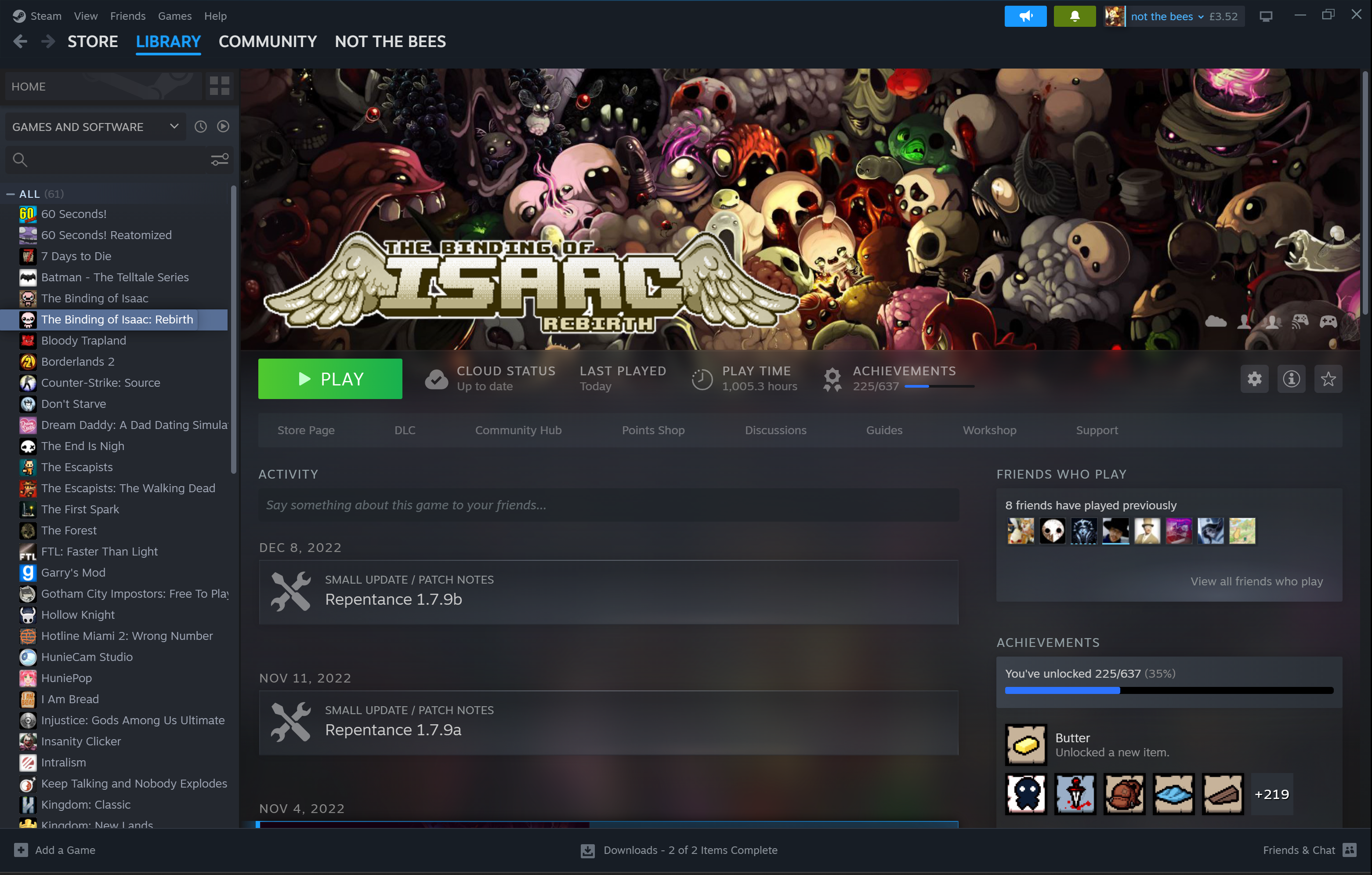
From the games selection listed on the left-hand side of the screen, right-click on the game you want to check on.
-
Step
4Go to Properties

From the drop-down menu presented, click on Properties.
-
Step
5Click on Updates
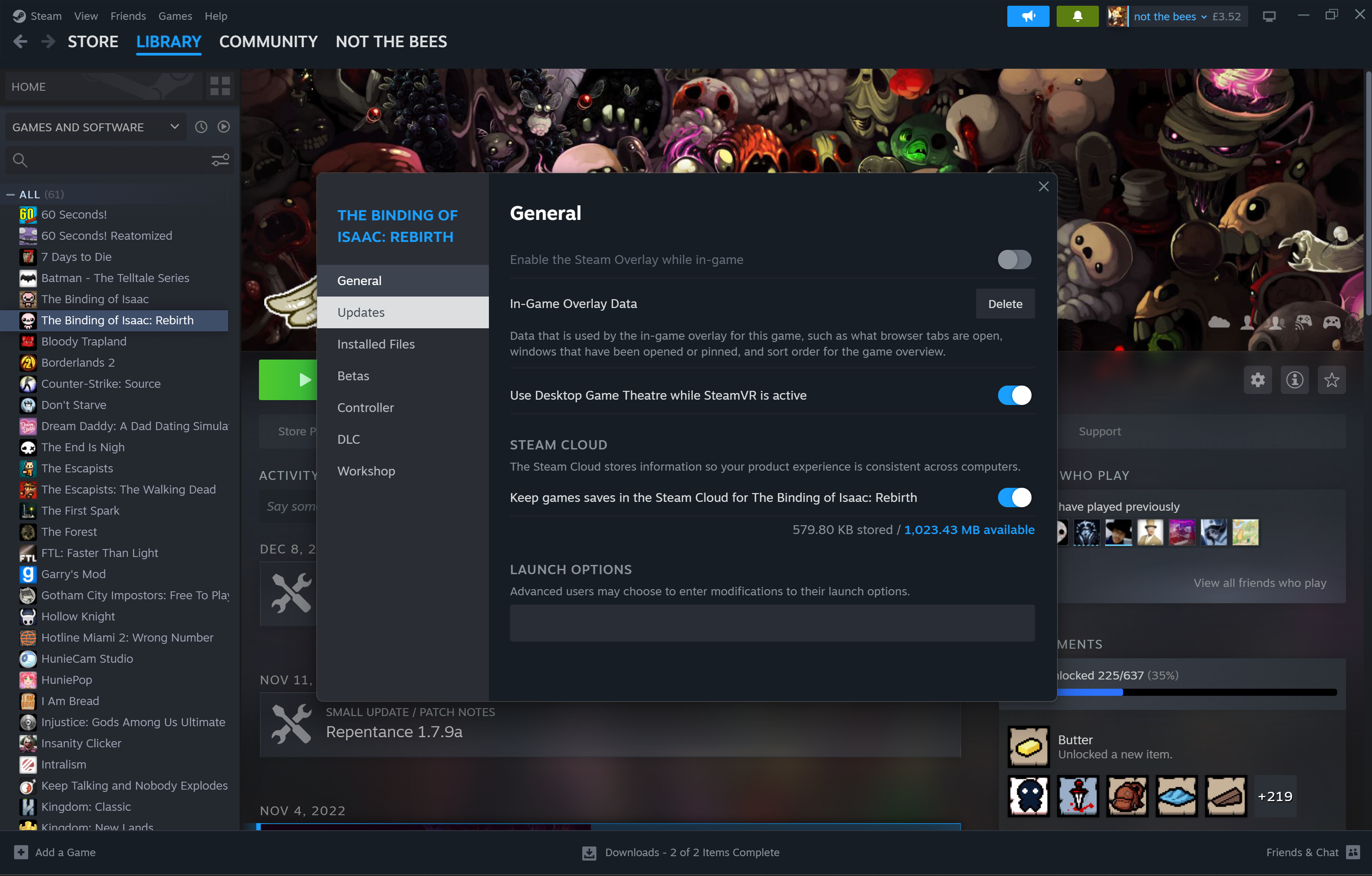
From the new menu that is presented, go to the menu on the left-hand side of the screen and click on Updates.
-
Step
6Click on Automatic Updates
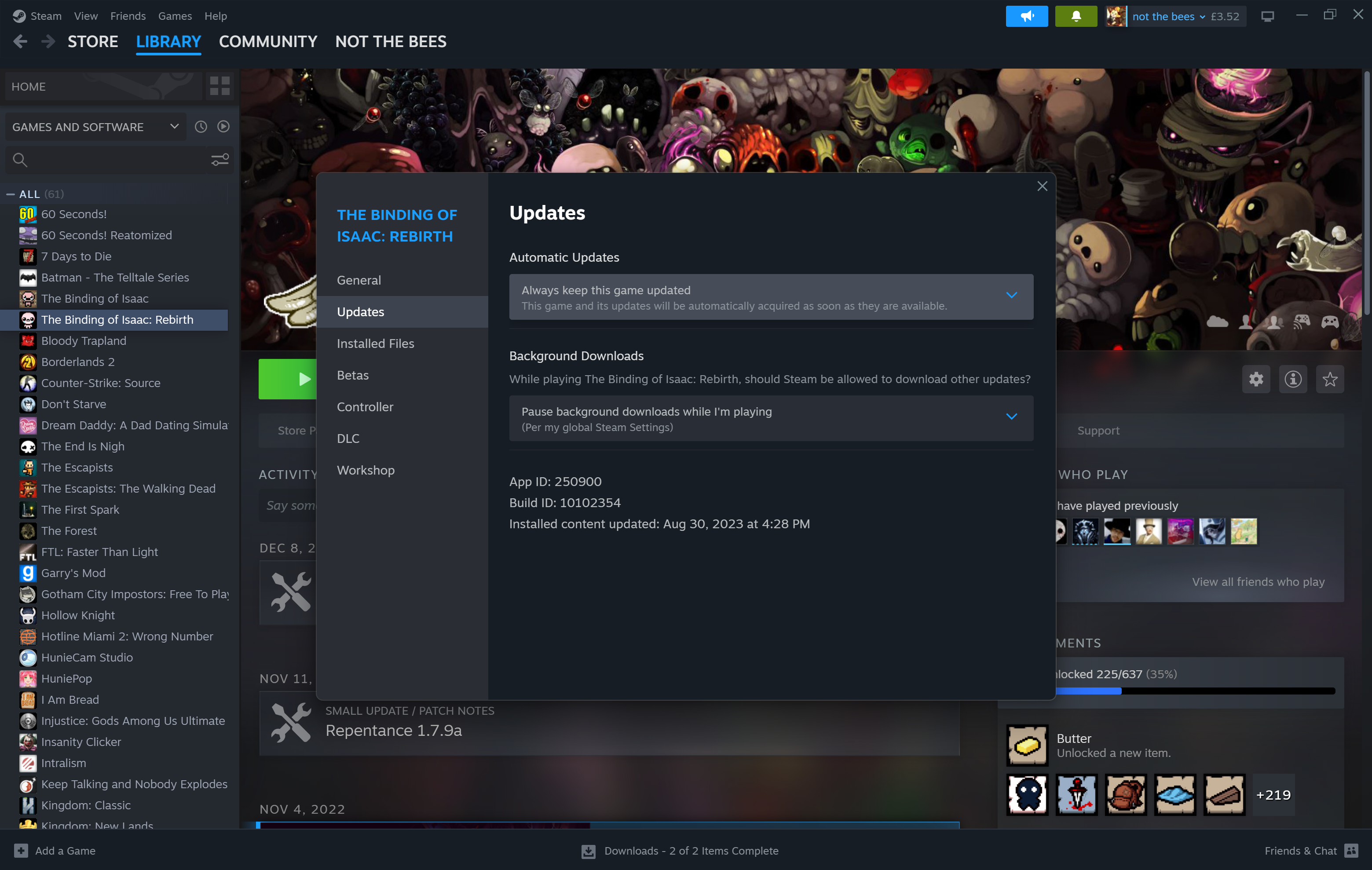
Go to the header called Automatic Updates and click on the box just below it.
-
Step
7Select how you want to update your game
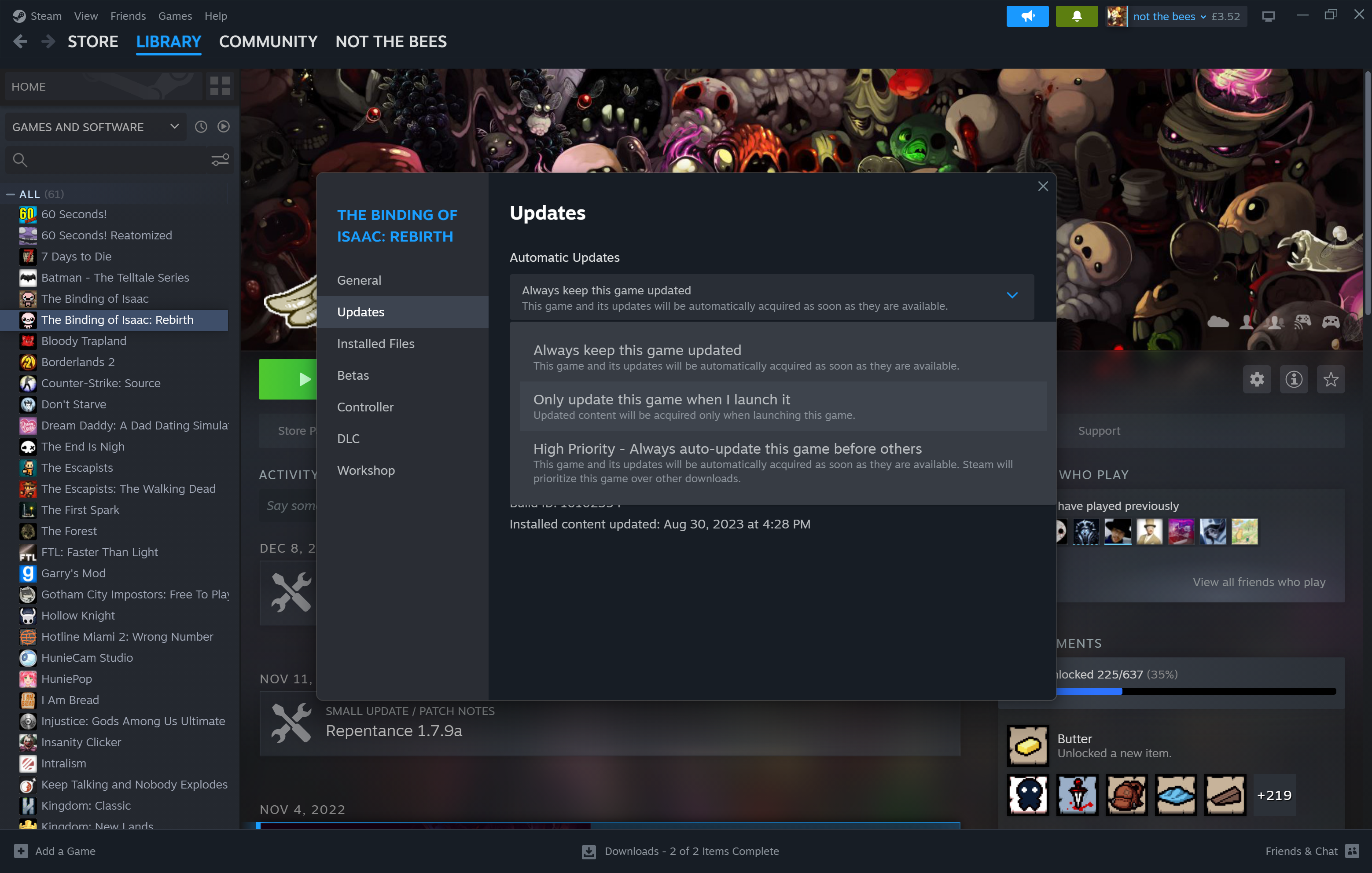
Select how you want to update your game from the three options presented. You can choose to always keep this game updated, only update the game once it has been launched or have it as a high-priority title, meaning that it will be updated before any other game.
Troubleshooting
Yes, you can set games on Steam to update once you launch them and even set certain games as priority, allowing them to be updated before any other title.
Originally posted 2023-08-31 08:53:00.