There are few worse feelings in this world than realising you’ve accidentally deleted an important work document that you’ve spent hours upon hours to complete.
Fortunately, Google Drive offers up the option to restore deleted files. However, Google warns that you’ll need to be the owner of the file in order to restore it, and you’ll only have 30 days to restore a document following the initial date of deletion.
If you want to restore a file from Google Drive outside of that time window, then you’ll need to instead contact Google Support. Check out our Troubleshooting guide at the bottom of this page for more details.
Otherwise, follow the steps below to find out how to recover a deleted file on Google Drive.
What you’ll need
- A Google Account
- Google Drive
The Short Version
- Open up Google Drive
- Click on Trash on the left-hand sidebar
- Right click on the deleted file
- Click Restore
- Open the folder that the deleted file was originally located
-
Step
1Open up Google Drive
Make sure you’re signed into the same Google account which you used to create/delete the file in question.

-
Step
2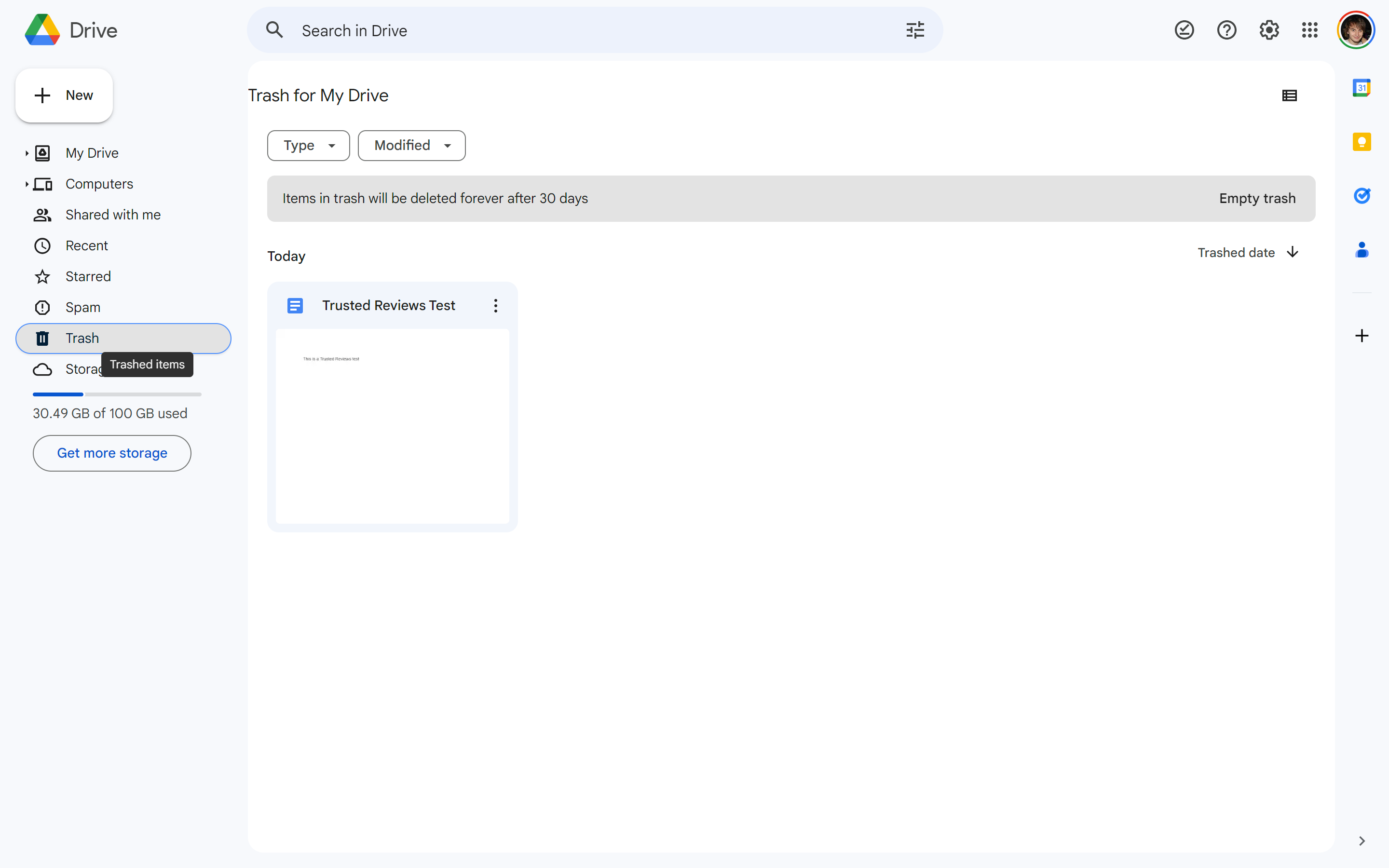
You should find a sidebar to the left-hand side. The second-to-bottom option should be called Trash, with a little bin icon. For a shortcut, you can click this link.
-
Step
3Right-click on the deleted file
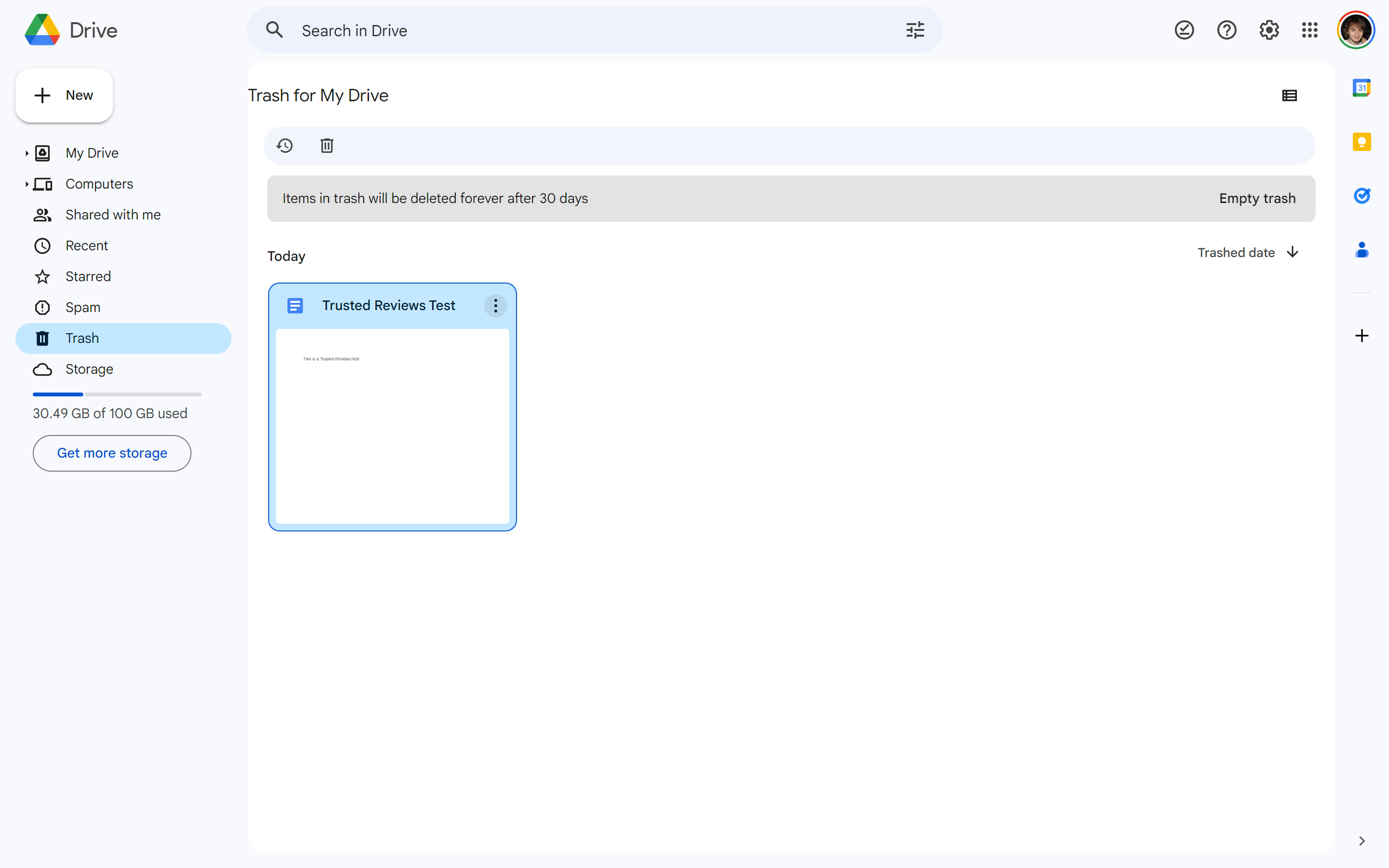
If your file was deleted within the last 30 days, you should be able to find it here. If not, you’ll need to scroll down to our Troubleshooting section to find out how to restore a permanently deleted file.
-
Step
4Click Restore
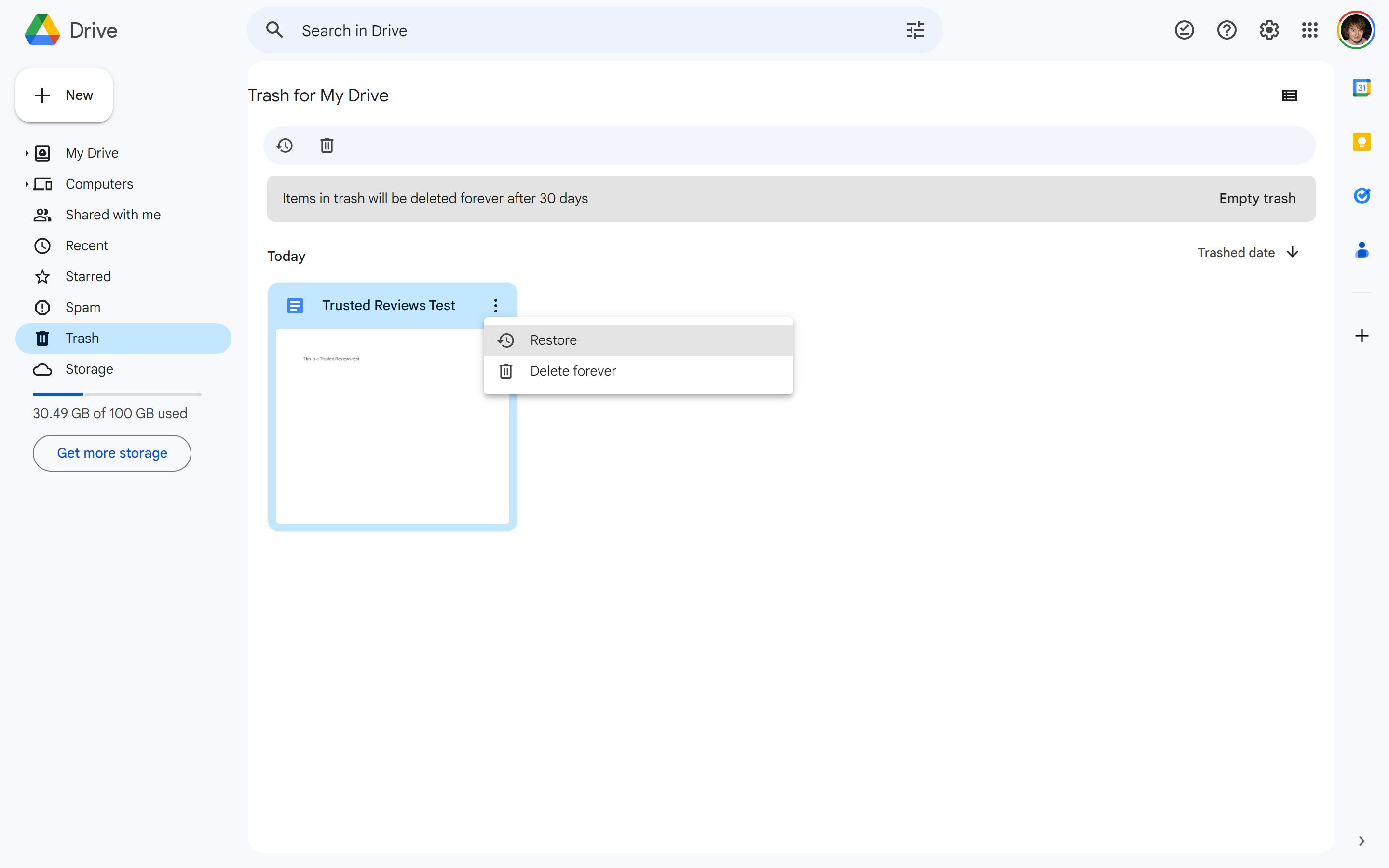
In the new drop-down menu, you should see the option to Restore. Click it.
-
Step
5Open the folder that the deleted file was originally located

Once the above steps are complete, head back to the original folder where your file was located before deletion. You should find it fully restored.
Troubleshooting
Google will automatically permanently delete any file that’s been sitting in your trash for 30 days. In order to restore such files you’ll need to submit a form to Google via this link.
Originally posted 2023-08-08 12:55:37.